




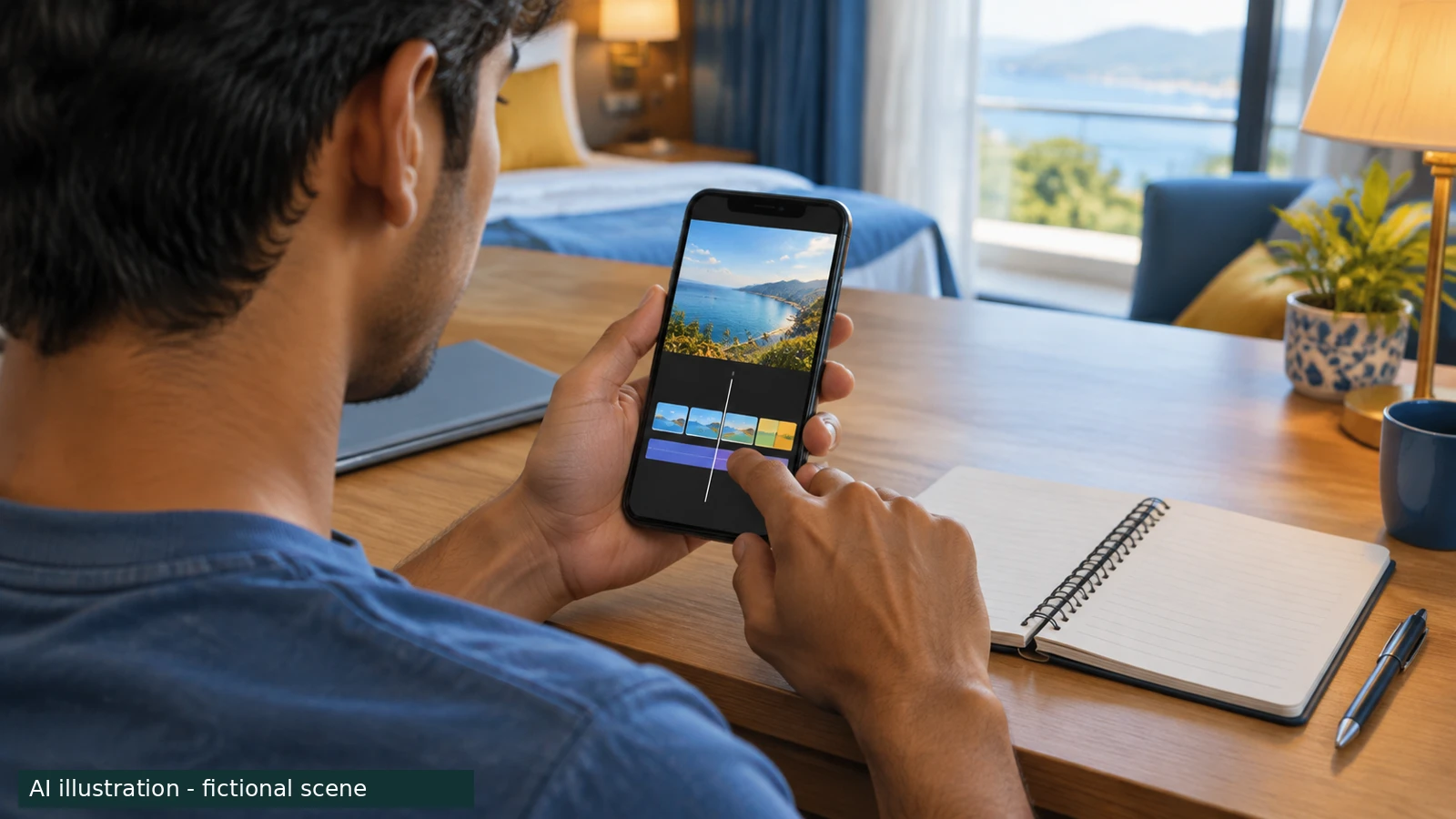
AI illustration: a fictional traveller edits on an unbranded phone. The abstract screen is not a screenshot or evidence of an app feature.
A travel reel does not need footage from a separate camera. This is one manual workflow for your own phone clips in YouTube Create on a compatible Android phone. It is not an Instagram upload tutorial, an app comparison or a claim that every phone has the same controls.
Check the app and phone before choosing the edit
YouTube’s available-locations page lists India and says the Android app needs at least 4 GB of RAM. Check the current store compatibility on the actual phone. This guide uses the Android route, not an iPhone or iMovie substitute.
The official Google Play listing for YouTube Create describes combining media, trimming and cropping clips, voiceover, captions in selected languages and resizing to portrait, landscape or square. Those are documented capabilities, not a report that we tested your device. We use existing recorded clips here; generating new scenes is outside this workflow.
Choose a small story from the footage you already have
Our editorial example is a short sequence with an arrival, one activity, a useful detail and a closing moment. Choose clips that actually show that trip. There is no required clip count or magic duration. Do not present a different place or an AI-generated scene as something you filmed on holiday.
Keep the original files and work from copies or a separate selection. Before using a clip, inspect it for readable tickets, room numbers, private conversations and people who do not want to appear. Our privacy suggestion is to leave doubtful footage out rather than expect a small caption to fix the disclosure.
Start the project, then set the frame
YouTube’s project-start guide says to choose photos, videos or previously imported media from the gallery, with multiple items supported. Import your chosen phone clips into a new project rather than recording a screen of another video.
The official YouTube Create introduction tutorial shows the three-dot menu and “Aspect ratio”, including 9:16 for a vertical project. The current Play listing separately confirms portrait resizing. Preview the result: a vertical frame can leave important people or landmarks outside the crop. If the menu differs on your version, use its current controls instead of assuming this tutorial’s layout is unchanged.
The tutorial also contains an older one-minute Shorts reference. This article does not use it as today’s upload limit. A vertical edit, a YouTube Short and an Instagram Reel are separate publishing decisions.
Trim for a clear sequence, not an effect on every cut
The official tutorial demonstrates dragging a clip’s end handles to change duration, splitting with the scissors control and rearranging clips. Use those documented tools to remove accidental starts, long pauses and repeated views. Our editorial preference is to keep the sequence understandable before adding transitions or speed changes.
Play the entire sequence, including each join. Check whether the subject stays inside the frame and whether a cut hides information needed to understand the moment. Avoid changing speed in a way that misrepresents an activity or makes movement hard to follow.
Use sound you can actually publish
Record a simple voiceover or keep suitable original sound if that serves the story. The official tutorial documents voiceover and volume controls. Do not assume music playing in a café becomes yours to reuse because your phone recorded it.
YouTube’s safe-music guidance says to check licences for where and how music may be used. A track labelled “free” is not enough. For an export intended for another platform, verify that use separately instead of assuming permission inside YouTube carries over.
The current export help also warns that Shorts Audio Library music is removed when exporting a video longer than 15 seconds. That is an export limitation in the source, not a workaround granting cross-platform music rights. A silent or original-audio edit avoids making the story depend on an unverified track.
Preview, export and inspect the saved file
The export help gives the Android sequence: open the project, tap More, choose Export, select the preferred quality, then Export to save to the device. Preview with Play before doing that. Uploading directly to YouTube is a separate option, not a required step for saving a file.
Our final check is to open the saved video outside the editor. Watch once with sound and once muted. Read any titles and captions, check names and places, inspect crops, and confirm the beginning and ending are intentional. If you later post elsewhere, check that platform’s current format, privacy and music rules in its own upload screen. This guide promises no reach, upload acceptance, watermark status or universal export setting.
Sources and scope
Read 27 October 2026: linked official YouTube project, availability, export and music help, current Google Play listing and official introduction tutorial. Manual Android phone-footage workflow only; no claim of hands-on device testing or current Instagram upload rules.

A Miranda House graduate and lawyer who traded courtrooms for slow travel. Cheshta travels with the batches we host ourselves, with a soft spot for travelling alongside elders.
Planning your next trip?
We'll handle insurance, hotels, airport assistance and the itinerary — the same way we do it for every trip.
Questions on this article
asked by readers, answered by us
Was this helpful?
one tap, no sign-up