
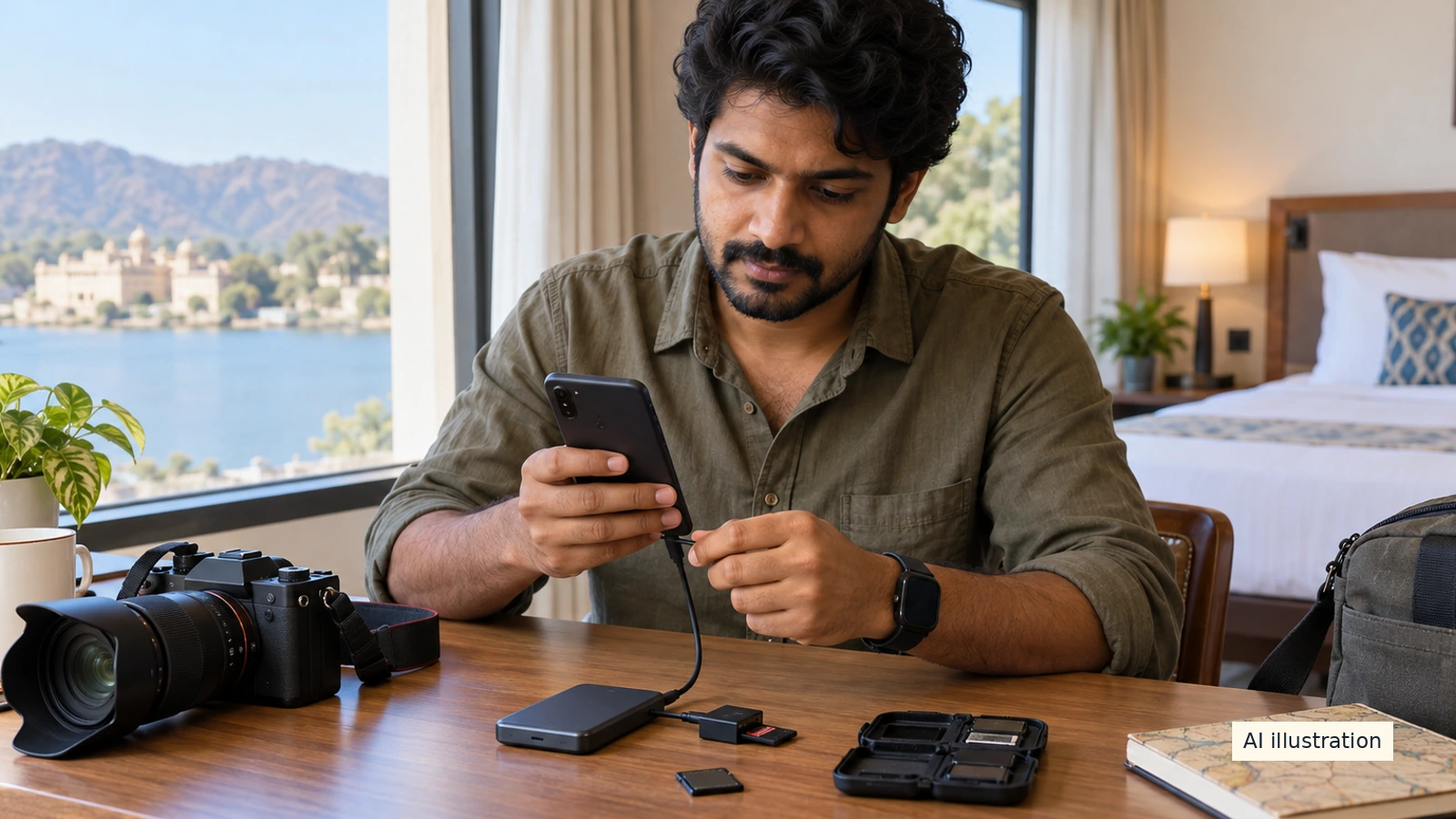
AI illustration: A fictional travel photo-backup setup. Not a tested hardware combination or product endorsement.
A phone, a compatible reader and an external drive can form a travel backup plan. They are useful only after you test the whole chain with your own camera files. A thumbnail on a screen is not the same as a verified second copy.
Choose what needs backing up
Separate pictures taken on your phone from files still on a camera card. As a planning habit, keep the original until you have opened a second usable copy elsewhere. Copying everything from a card and then immediately erasing that card leaves only one copy again. Carrying spare cards increases recording space but is not itself a second copy of the same photographs.
An iPhone route, not a universal cable promise
Apple's iPhone import and export guide says you can import from a digital camera or SD card and export unmodified photos and videos to connected external storage. Use the connector, adapter or reader appropriate to the actual iPhone. For a camera connection, Apple says to turn the camera on and place it in its transfer mode, following its own documentation.
For an import, connect the supported device or reader, open Photos and use the available import flow to choose the files and destination. Apple provides an option to keep or delete the source after import. For a travel backup, choose to keep it until you have checked the copied files and your separate backup. Menus can vary with software version; practise before the trip instead of buying a cable at the airport.
Check drive format and power before leaving
Apple's external-storage guide lists supported formats and says the device must have a single data partition. It also warns that external hard drives often need external power with iPhone; its suggested power arrangement differs between USB-C and Lightning. A plug that fits is not proof the drive will mount or have enough power.
Test the exact phone, reader, card, cable and drive together. Confirm the drive appears in Files and has enough free space for the files you plan to carry. If a device asks to format a card or drive containing your only copy, stop. Use a different prepared device rather than erasing the source to make it connect.
Export originals, then inspect the copy
For the Photos export route, Apple says to select the pictures or videos, use Share and Export Unmodified Original, choose the external device under Locations and save. Edited items export their unmodified original. Apple also says items in a locked Hidden album will not transfer through this flow. Do not assume an edited version, every hidden item or every camera format has been included without checking.
Open a sample of copied pictures and play longer video clips from the destination. Check the beginning, middle and end of the day's work, plus the files you care about most. Compare what was selected with what arrived. This is a practical verification routine, not a guarantee against later corruption.
Keep the copies apart
Keep the source card and backup drive in separate places during travel so one lost pouch does not remove both. Label folders by date and camera or phone, without renaming the only originals in a hurry. If you also use cloud storage, confirm the upload actually completed before treating it as another copy. Limited hotel Wi-Fi or mobile data can make a cloud-only plan impractical for large videos.
For Android or a different camera app, use that maker's current import and external-storage instructions. The Apple workflow here is one documented example, not proof that every phone, drive and camera format works together.
Quick questions
Can I erase the card as soon as import finishes?
For a backup plan, keep the source until a separate usable copy has been checked. Erasing it can leave you with only one copy.
Does every external drive work with iPhone?
No. Apple specifies supported formats, a single data partition and power requirements. Test the actual setup.
Does Export Unmodified Original keep my edits?
Apple says it exports the unmodified original of edited items, not the edited version.
A Miranda House graduate and lawyer who traded courtrooms for slow travel. Cheshta travels with the batches we host ourselves, with a soft spot for travelling alongside elders.
Planning your next trip?
We'll handle insurance, hotels, airport assistance and the itinerary — the same way we do it for every trip.
Questions on this article
asked by readers, answered by us
Was this helpful?
one tap, no sign-up